Tuesday, October 2, 2018
Monday, September 24, 2018
Thunkable Tutorial
Thunkable Last Tutorial
https://x.thunkable.com/projects/5ba40217aa135e63aba78061/Screen1/designer
Thunkable #4
https://x.thunkable.com/projects/5ba3ff84b170b562dc694fb4/Screen1/designer
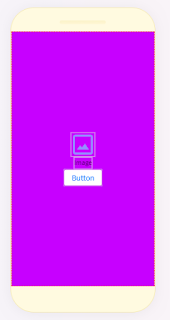
https://x.thunkable.com/projects/5ba3fe70aa135ec7fda7804b/Screen1/designer
Thunkable #2
https://x.thunkable.com/projects/5ba3f97daa135e1bbca78024/Screen1/designer
Thunkable #1
https://x.thunkable.com/projects/5ba154fdecc9d65f462b3849/Screen1/designer
Monday, September 17, 2018
6 Short Cuts
1) Ctrl + Shift + I Inverts selected parts
2) Ctrl + J Copy Layer
3) Ctrl + Magnify 100%
4) Ctrl+ T Transform Tool
5) Ctrl + Shift + N Make new layer
6) Ctrl + 0 Fit Screen
How I selected the Octopus then I used the Invert Selected parts to select everything but the octopus and deleting it
1) Ctrl + Shift + I Inverts selected parts
2) Ctrl + J Copy Layer
3) Ctrl + Magnify 100%
4) Ctrl+ T Transform Tool
5) Ctrl + Shift + N Make new layer
6) Ctrl + 0 Fit Screen
How I selected the Octopus then I used the Invert Selected parts to select everything but the octopus and deleting it
Thursday, September 13, 2018
Tuesday, September 11, 2018
Monday, September 10, 2018
Subscribe to:
Posts (Atom)
Slideshow Tutorial simplified
How to make a slideshow*Simplified* Before you start You need 10+ pictures. Get some music you need premiere pro (duh) ...
-
1)Original Image is a throw able Anchor and the New Image is a Stationary Anchor. The reason the stationary anchor is better is because it i...
-
The Different Things you can build Other Things To Show Collection Notes Research Table 3 Story Planter Forging Shark Attack...